Threading

A while back, I wrote an app that spawned a collection of threads to run some work in parallel, using the resources in the System.Threading namespace of the .NET Framework. Some time after that, I worked on another app that also had a threading component. This second app was reviewed by another developer from outside my immediate circle. He asked, “Why didn’t you use the System.Threading.Tasks” namespace? Uhh… because I didn’t know it existed?

That namespace was introduced in .NET Framework 4 – not exactly recent history – but I had somehow missed it for quite a long time. There are a few causes for that, but the one I’d like to focus on here is a trap that I think catches many developers at one time or another: We think we have it all figured out. While we are, to some degree, practical mathematicians – professionals who assemble algorithms to meet requirements – we are also creators. Our code is our art. And oftentimes, we don’t have the humility necessary to accept the possibility that our art isn’t beautiful. So we shy away from having the right people check our work.

This reminds me of an old saying: If you’re the smartest person in the room, then you’re in the wrong room.*

Now, this is not a commentary on my current team. I work with some really smart people, and I’m very grateful for that. But while my teammate may be one of the best PHP or Node.js coders I know, that doesn’t necessarily translate to an expertise with the .NET Framework. The true test is this – no matter how smart they are, if they’re not catching my mistakes, then I’m not being held accountable.

Lesson 1: Make sure someone’s catching your mistakes. If they’re not, then do you really think the reason is that you’re not making any?

So, back to the two apps… After the other developer’s feedback, I reworked the second one prior to release, and it passed its code reviews. The first app, meanwhile, developed some bad behavior in production. There was definitely a race condition of some sort, but I couldn’t seem to nail down where it was. I made a couple of adjustments to the code, but nothing seemed to bite. Of course, I couldn’t reproduce it in testing either.

Finally, I ripped out the threading code entirely and replaced it with nearly identical code based on System.Threading.Tasks. I was concerned about the risk of introducing more bugs, about the fact that I was still unable to reproduce the problem, and about how long it had been a problem, so I tried to remain as faithful to the original design as possible. And, yeah, honestly, I crossed my fingers.

Once this new version was released, the problem was gone.

Lesson 2: System.Threading.Tasks really is better than System.Threading.

I’ll never know what exactly fixed the problem. I could keep researching it, but the costs to me for that aren’t quite worth the benefits at this point. My takeaway was that the new stuff just simply works better. Whether that’s because it’s easier to use the right way (and harder to use the wrong way) or its internals are less buggy or some combination thereof, the end result is the same. I hope that’s old news to anyone reading this, but I wanted to share my experience just in case.

* I was unable to identify with certainty the source of this phrase. The leading candidate I found was 1962 Nobel Laureate James Watson.

A Christmas Wishlist

I finally had the chance to catch up on some reading last week, and it got me thinking about sharing this list. If you are in software development, then I would consider these four books to be required reading. I’m going to revisit this post in the future, because I’m sure there are more to add. But I wanted to start somewhere, and I’m confident about these four.

Fonts and Frustration

TL;DR – There are a couple of XML files at the end of this post. If you regularly present technical material using SSMS, download these.

I present technical sessions now and then – my local PASS group, SQL Saturdays, internal groups at my workplace, etc. I frequently find myself adjusting the fonts inside SQL Server Management Studio to make sure my material is readable on the big screen. I’ve also been in the audience plenty of times, watching with sympathy as one of my cohorts agonizingly navigates this problem.

Usually, it goes something like this. They first find the [100%] tucked away in the lower left corner of the text window, and blow that up to 150 or 200 percent. Then they run their query to find that the results are still at 100%. So then they eventually find the Options dialog under the Tools menu, find the Fonts and Colors branch of the tree, and then groan when they realize they have to figure out which three or four of the 30 different fonts they need to change. Sometimes, they’ll give up there and just go use ZoomIt (which any good technical presenter should have available anyway), but constantly bouncing around with ZoomIt will get old quickly over the course of an hour-long session.

But if they do manage to find the right fonts to change and take a good stab at what they ought to be, they get this wonderful message:

Font Frustration

Just the thing you want to see when you already have all your demo scripts loaded, right?

Oh, and don’t forget that – when the session is over – you now have to go through the same exercise to get SSMS back where you had it before the session.

So quite a while ago, I generated a couple of .reg files for myself, one called PresentationFonts.reg and one called NormalFonts.reg. You can imagine what these did when I applied them to the Windows Registry.

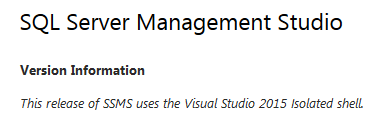
That worked great… until recently. The SQL Server Tools team has done some marvelous things with SSMS lately, and I’m very happy with the changes. But take a close look at one of those things they did:

Version Information

And where does this new shell keep its settings? Here’s a hint – it’s not in the registry. It’s actually in this file:


{LocalApplicationDataPath}\Microsoft\SQL Server Management Studio\13.0\ApplicationPrivateSettings

And this file is some bizarre hybrid of XML, JSON (with JSON inside of JSON, no less!), and I don’t know what else.

Fortunately, there is an option available. Under the Tools menu, there is “Import and Export Settings…”, which gives you a wizard for importing some or all settings from an XML file. So, with that in mind, here are my files that I use.

  • PresentationFonts.vssettings – This changes the font size to 16 for Text Editor, Execution Plan, Grid Results and Text Results.
  • NormalFonts.vssettings – This changes the font size to 9 for Text Editor, Execution Plan, Grid Results and Text Results.

NOTE: When you save these, save them with the .vssettings extension. Since I’m a cheapskate and use wordpress.com to host this blog, I’m prevented from using whatever extension I want. So they’ll show up as .doc files in your download dialog, but they really are just text XML. And the Import/Export wizard looks specifically for .vssettings files.

Obviously, you may not use the same settings I do, and you’ll have to customize them for your own uses. If you change the same four that I do, then all you have to do is fiddle with the sizes in the files. If you wish to change different fonts, you’ll want to export your settings with that wizard, change the font you want, export them again, and compare the files in order to figure out which GUID is which.

In any case, I strongly recommend having a pair of files like these parked right next to your demo scripts, where you’ll remember to run them as you prepare for your session.

I know this is a rather long post for a rather small tip, but I’m amazed at just how many of us fight this problem. If I had a dollar for every time I’ve seen a presenter struggle with font sizes, my Azure subscription would be paid for.

And So We Meet Again

This is not a technical topic, but one I find myself very passionate about. An article today at NPR brought it to the forefront. As my organization matures, like every organization, rampant movement is slowly replaced by more controlled but slower movement. Notice I used the word “movement”. As Hemingway said, “Never mistake motion for action.” What maturity in an organization often brings is a better ratio of action to motion. We do a better job of working on only those things that really matter, not going off on adventures that may never make their way to production. Or developing with a ready, fire, aim approach. But it also wraps that action in more red tape. It’s a trade-off that every organization encounters.

Anyway, meetings are a highly visible part of that red tape. And the article covers the topic pretty well. I just have one thing to add. It’s a little math that I’ve always kept in the back of my mind at every meeting. Here’s the formula:

Px = T * W

Or, Productivity Lost = Time of the Meeting X the number of Workers at the meeting.

If you are running a meeting for 6 knowledge workers for 2 hours, assume that you just lost 12 hours of productivity. Was that meeting worth those 12 hours? It might have been. But that’s the trade-off. Remember, everyone’s time is valuable.

So, if you have any control over meetings at your organization, please keep that formula in mind. I always do.